MyLabour Configuring Overtime
PURPOSE
This training provides guidance for system administrators on how to configure overtime rules in MyLabour so that employee time cards, payroll preprocessing, and reports display correct overtime hours and overtime pay.
Introduction to MyLabour
MyLabour is a module within Oracle Hospitality Micros that manages:
- Employee timecards
- Pay calculations
- Overtime rules
- Job definitions
- Labor compliance settings
This module acts as the central location for all labor-related configuration.
Issue Overview
Issue
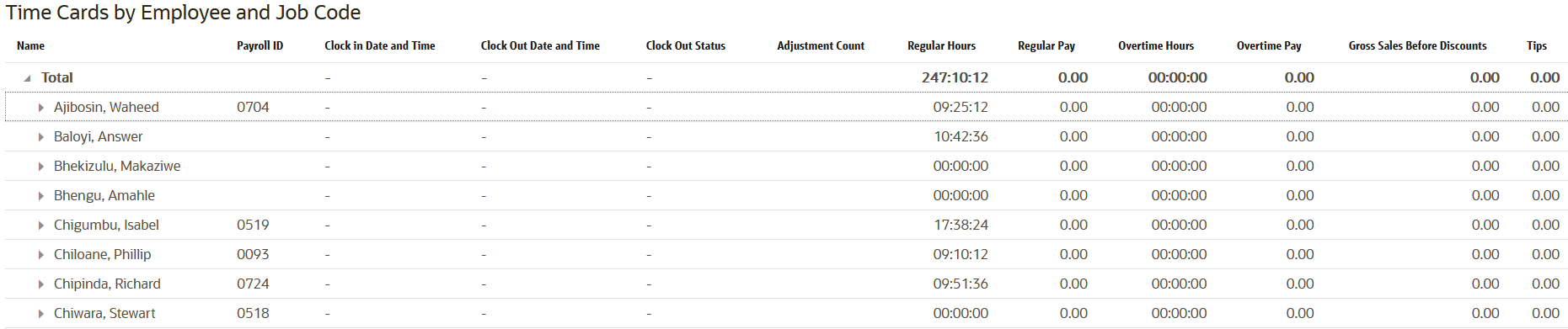
Overtime hours are not being tracked or displayed for employees.
Symptoms
When generating reports such as the Employee Time Card Detail Report, the OT (Overtime) columns show no overtime hours or overtime pay.
Cause
This typically happens when:
- Overtime rules are not configured.
- Overtime rules are not assigned to job definitions.
- Changes were not future‑dated correctly in MyLabour.
How to Check/Configure Overtime
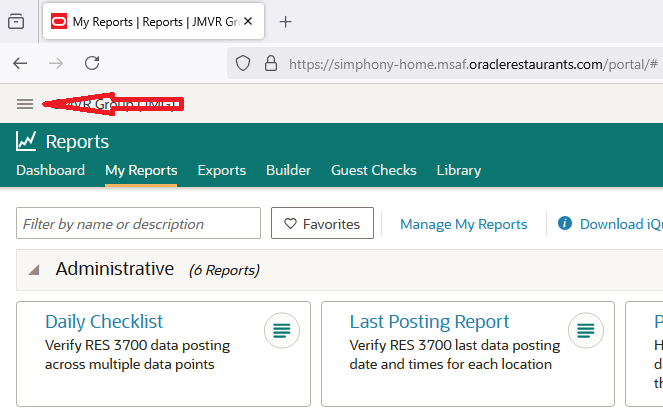
- Log in to Reporting and Analytics (R&A)
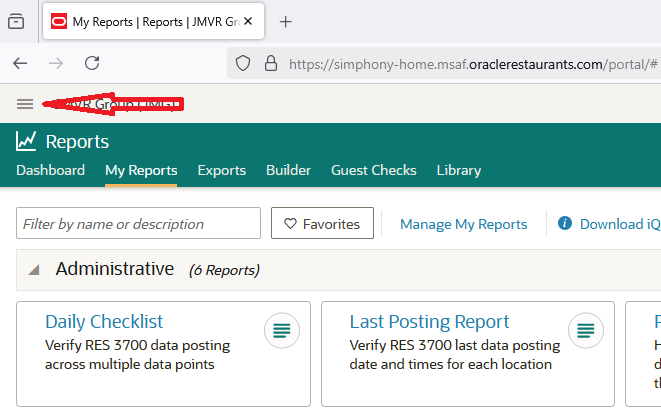
- Click on the ellipses button on the left as shown by the Red Arrow
- Select Labor Management | Payroll Preprocessing | Admin.
- Select Labor Pay Overtime Rules. In here you should have a Rule called Sunday Time.
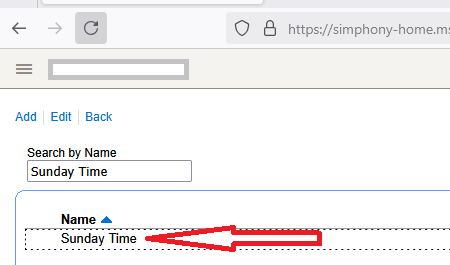
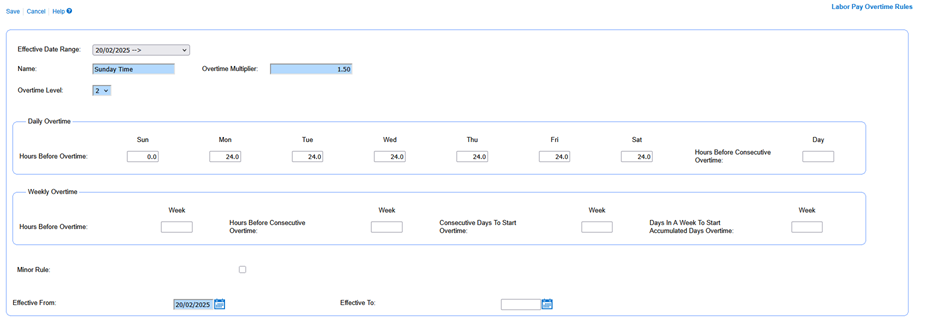
- Select the Rule and click on the Edit option on the top of the Page.
- You should now see the configuration as shown below.
How to Assign the Overtime Rule to a Job
- Click on the ellipses button on the left as shown by the Red Arrow
- Select Labor Management | Human Resources | Admin.
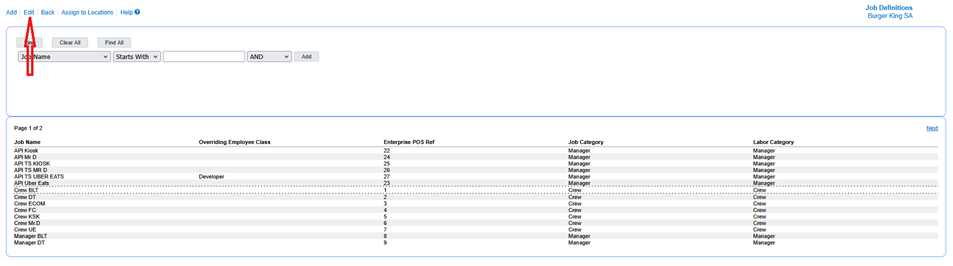
- Select Job Definitions, then Click on the Find All button to list all of the Job Definitions configured.
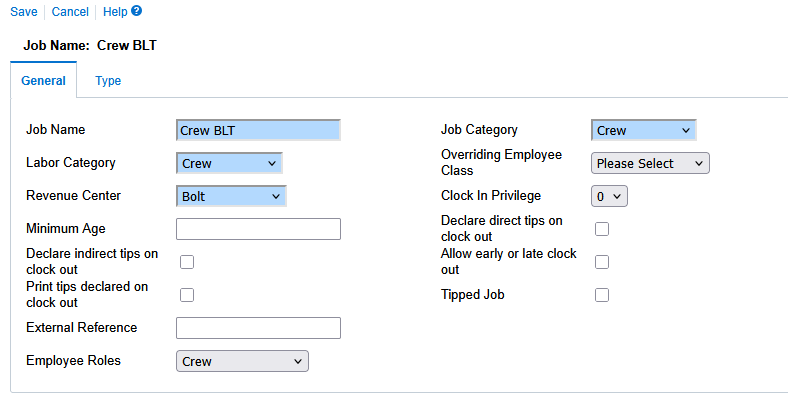
- Once all of the Job Definitions are listed, select a Job and Click on the Edit option at the top of the page.
- You now see the configuration of that Job as seen below.
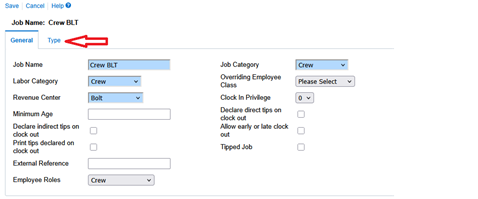
- Click on the Type option.
- Make sure that the Sunday option is selected as shown below.
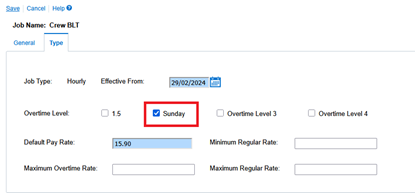
- This needs to be done for all Job Definitions, both Salaried and Hourly.
- This concludes the Standard Overtime Configuration for MyLabour.
PLEASE REMEMBER TO SAVE AS YOU MAKE CONFIGURATION CHANGES
MYLABOR CHANGES NEED TO BE SAVED USING A FUTURE DATE
This lesson is not ready to be taken.