Simphony EMC Audit Trail
PURPOSE
The purpose of this document is to provide guidance on how to utilize the Audit Trail functionality within Simphony EMC.
EMC Audit Trail
Kindly note the below steps to use and run the audit trail within the Oracle Simphony Enterprise Management Console application ( EMC )
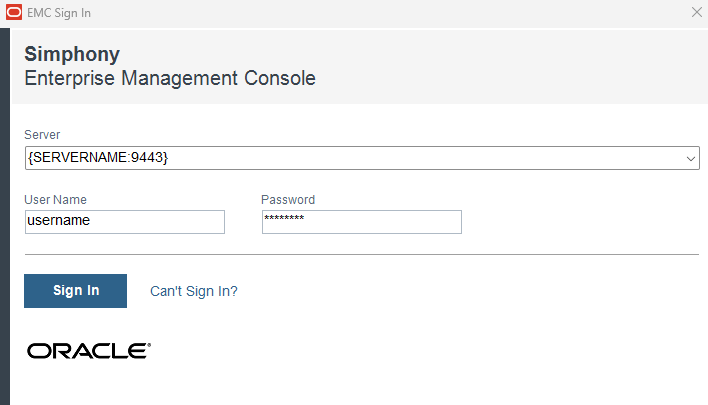
- You need to sign on EMC by double clicking the icon and then entering your credentials
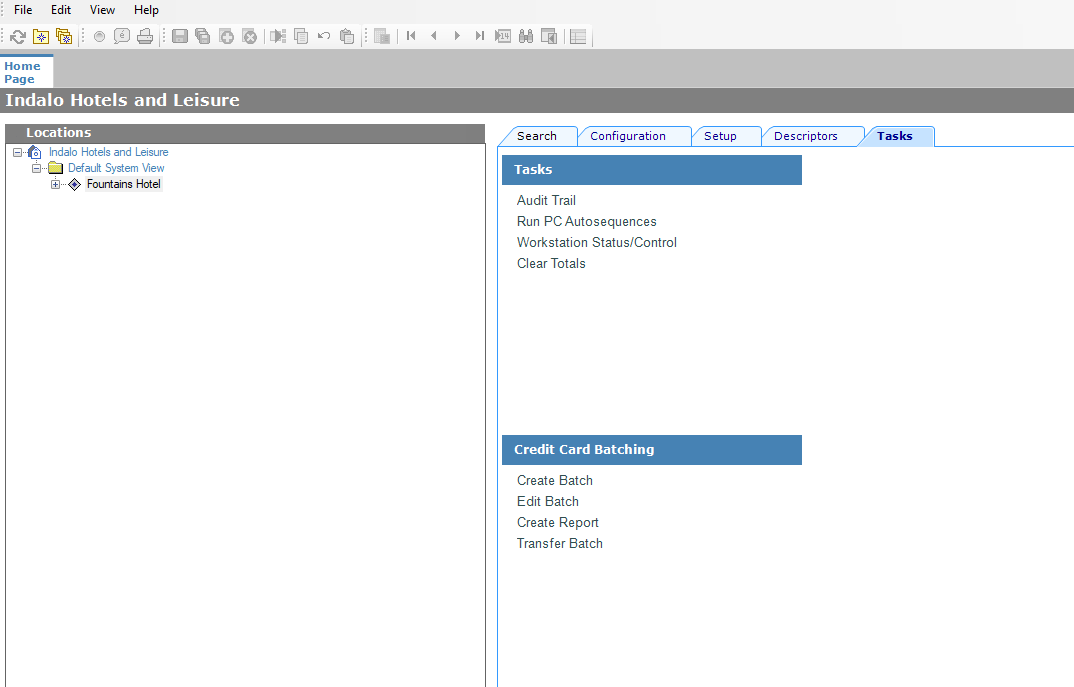
- On the landing page you need to select the property on the left under locations, then click on the “Tasks” Tab
Here you can see the audit trail module under Tasks , select it.
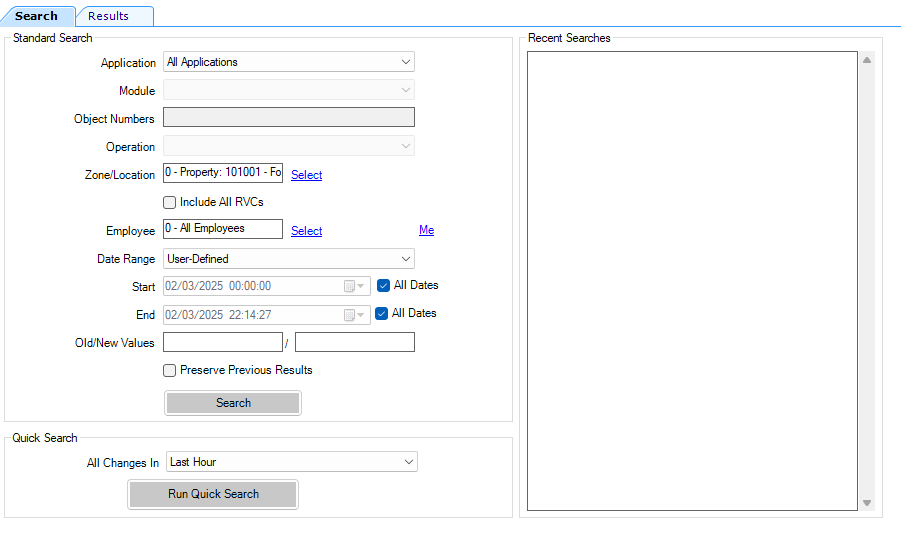
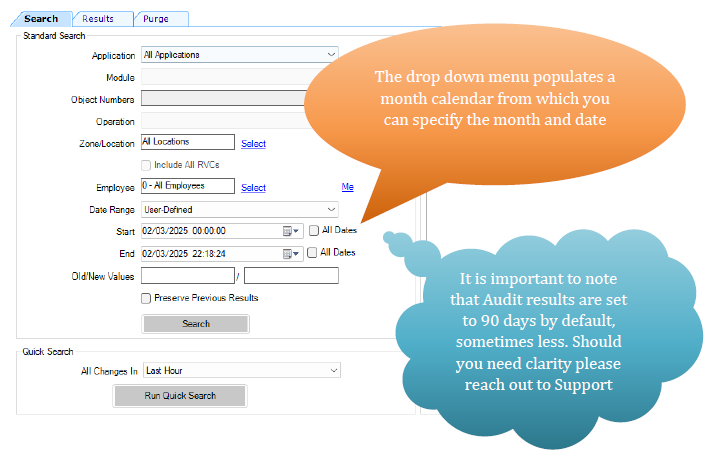
- On the Audit trail module you have multiple filters that you can apply, for a complete view of all changes on the property you can leave the fields as is and select the “search” button
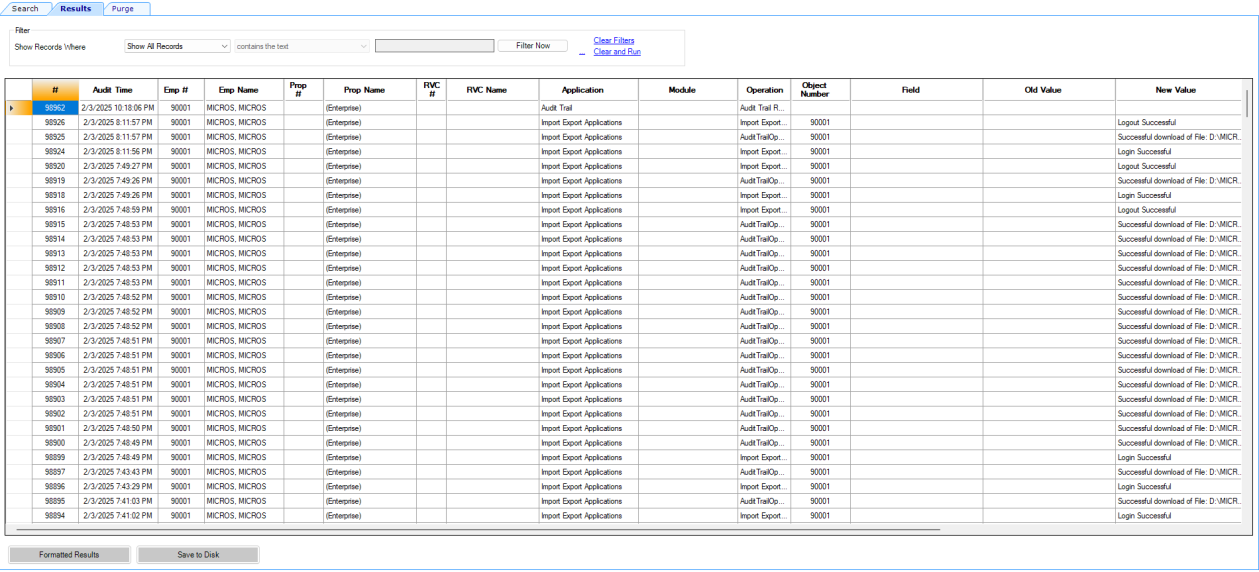
- Here is a brief search result with all dates selected
- If you are looking for specific dates you can alter the search parameters by deselecting the all dates options for the beginning and end dates and specifying the dates using the drop down menu
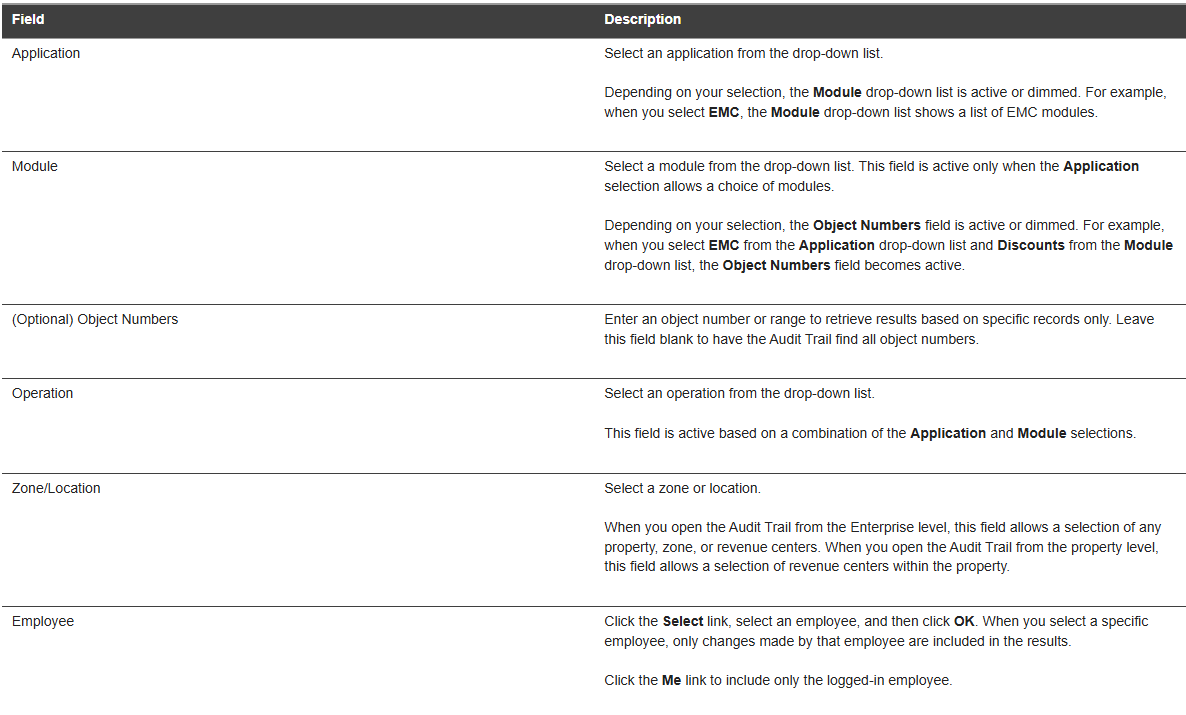
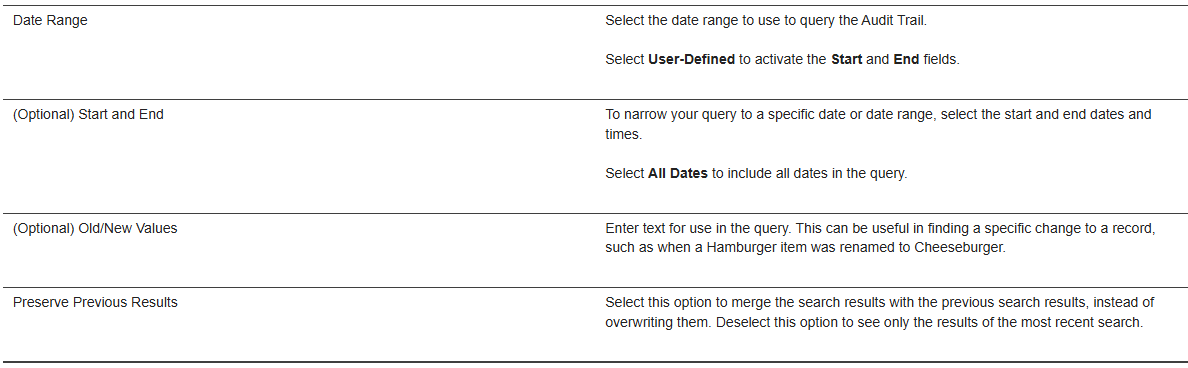
- Here are the definitions for the Search options
- There is also a quick search function
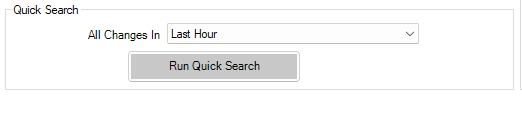
- By using the drop down you can view any changes done within the displayed time slots
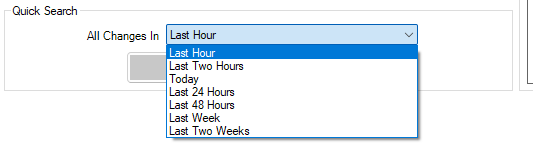
- There are more specified search option by using the drop down selections, however the successful search of said options is determined at which level you are running the audit so it may take a few tries for you to get the result you are looking for.
Here are the columns

- # -> indicates the Audit trail Record ID for each Entry
- Audit time - > indicates the time of the change or activity
- Emp # -> indicates the employee number of the employee who made the change or activity. A zero here indicates the employee has been deleted
- Employee name -> indicates the name of the employee who made the change or activity
- Prop # -> Indicates the property number where a change was made. -1 indicates the property was deleted. A blank number indicates a change was made on the Enterprise level. If a change is made in a RVC, it shows the property in which the RVC belongs.
- Prop Name -> Indicates the name of the Property where a change was made
- RVC # -> Indicates the RVC number where a change was made. -1 indicates the RVC
- RVC Name -> Indicates the name of the RVC where a change was made
- Application -> Indicates the name of the Application
- Module -> Indicates the module, typically the EMC Module name, within the application where a change was made. When the audit record shows a PMC Report, it shows the name of the report.

- Operation -> Indicates the type of operation that occurred
- Object number -> Indicates the object number of the record that was changed. If the audited record is a PMC Report, it is indicated by the autosequence number run
- Field -> Indicates which field was changed on a changed record.
- Old Value -> Indicates the value of a field before it was changed on a changed record.
- New Value -> Indicates the value of a field After it was changed on a changed record.
- Dist. Source -> Indicates the property or source RVC from which the original record was distributed.
- Comments -> Indicates comments added to the Audit Trail record. Some applications
This lesson is not ready to be taken.