CAL Update & Install Guide
PURPOSE
The purpose of this document is to provide guidance on how to install/update CAL after APP server upgrade or install
CAL Update/install guide
Kindly follow the below steps to update or install your CAL application
*kindly note that Windows administrator access is needed in order to install or upgrade CAL.*
- Open your internet Browser (ie. EDGE, Chrome, Firefox)
- Once open, browse to the below url, [replace the “SERVERNAME” with the url of your Simphony Application Server]
- https://servername.oracleindustry.com:443/simphonyapp
- Enter your EMC username and password and click on login
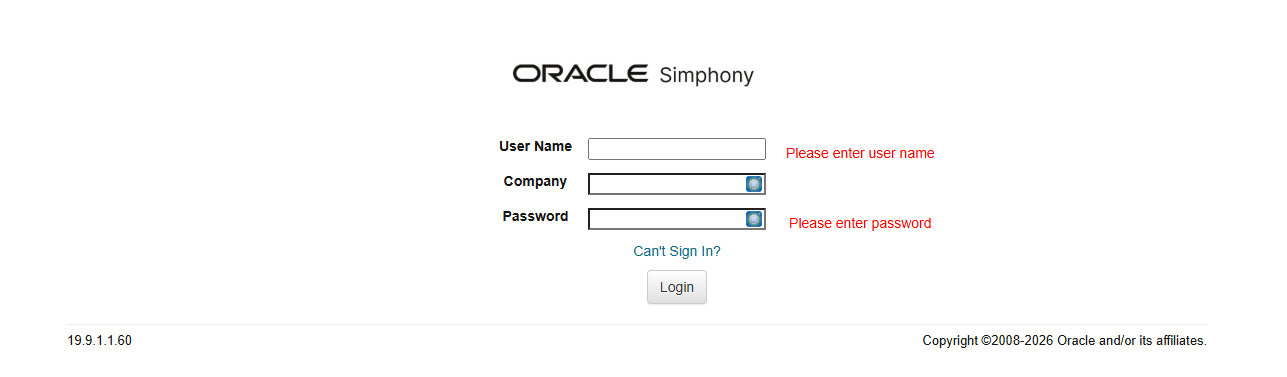
- At the top of the screen you should see the below, click on downloads

- You should see the below

- Click on the downward arrow, from the options displayed select the Client Application Loader (CAL) - Windows option then click on download.

- Run the download, and follow the Prompts
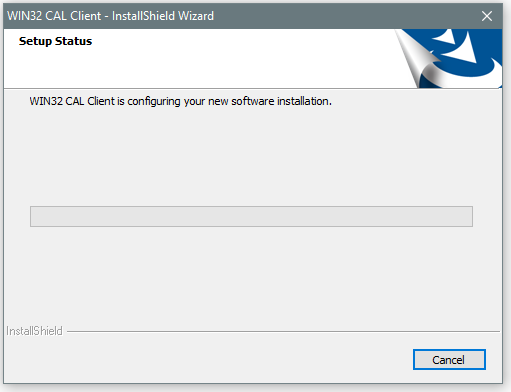
- Allow the Installer to complete
- Once the installer is complete, it will automatically start the Client Application Loader
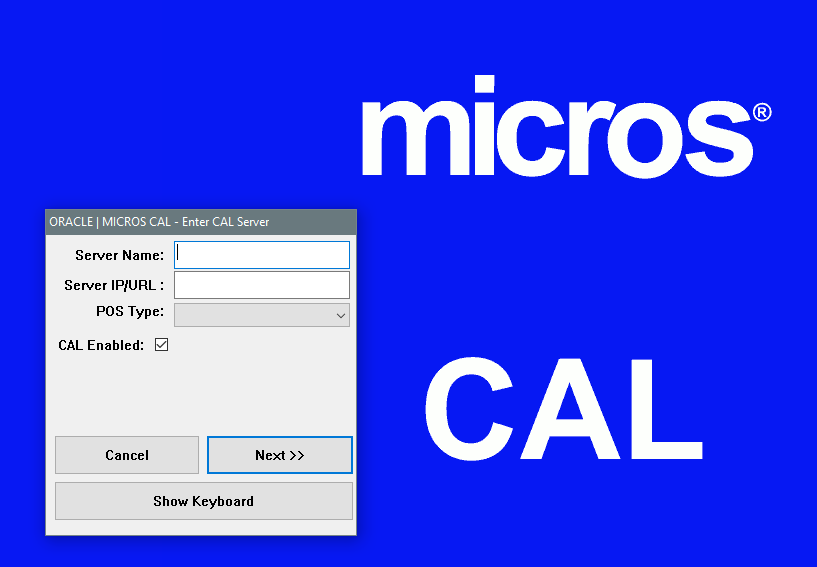
- The Server details should be available already, if not complete the details as per the below
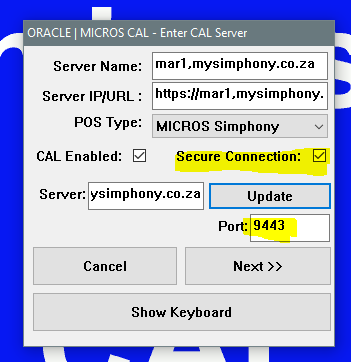
- Enter server: servername.oracleindustry.com
- nable the secure connection option bit and change the Port number to : 443 or 9443 then click on Update and then click Next
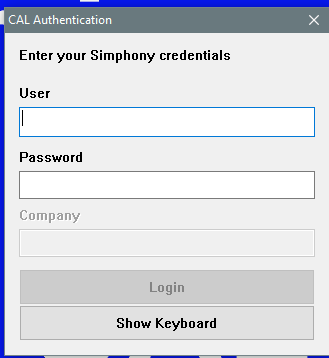
- you will be asked for your EMC credentials enter these and click on Login
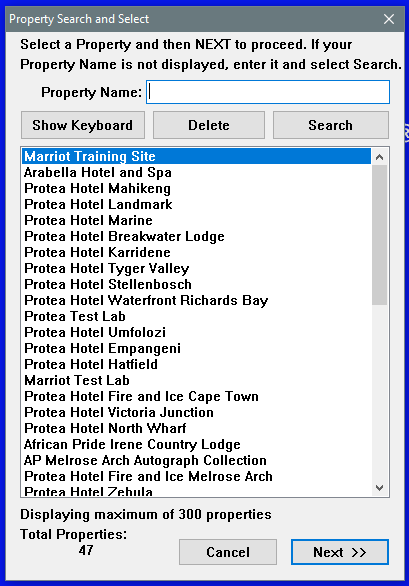
- select the property from the Property list and click on Next
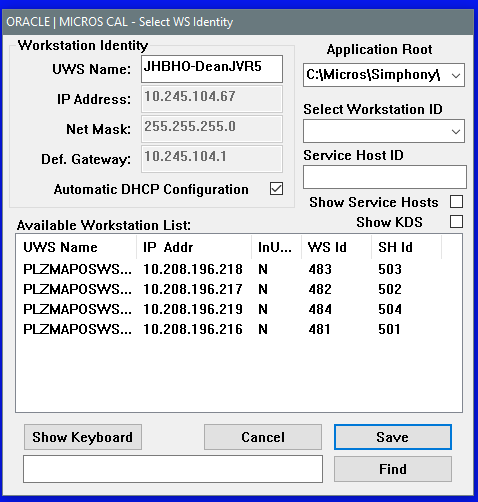
- on the next screen select the WS from the list you are wanting to CAL and click on Save
- The CAL process will start, the terminal will reboot several times while the files are being downloaded and installed.
- Once the process is complete, the POS software will start.
**Note: should the setup file fail to install please uninstall the current CAL from the device through the Control panel – programs and features**
This lesson is not ready to be taken.