Simphony Menu Item Maintenance
1. Overview
Menu Item Maintenance in Oracle Hospitality Simphony is used to create, maintain, and update menu items that appear on the POS. Correct setup ensures accurate pricing, prompts, reporting, and MyMicros data.
This guide explains best practices and step-by-step processes for adding, maintaining, and editing menu items.
2. Accessing Menu Item Maintenance
Where to Find It
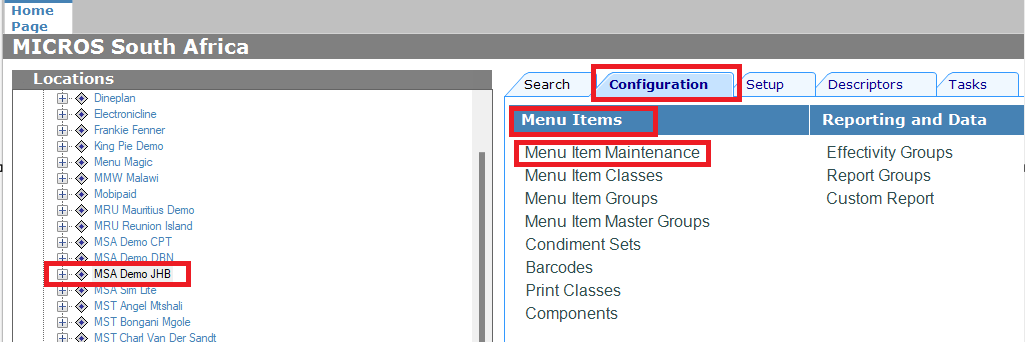
Log in to EMC (Enterprise Management Console)
Go to Property Level
Select Configuration → Menu Item Maintenance
3. Searching for Menu Items
Using the Filter Panel
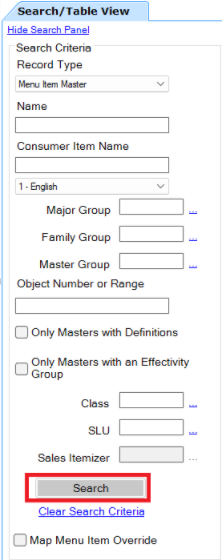
The left-hand filter panel allows you to search for specific items
Leave filters blank and click Search to load all menu items
Narrow results by selecting filter criteria, then click Search again
Search Shortcuts
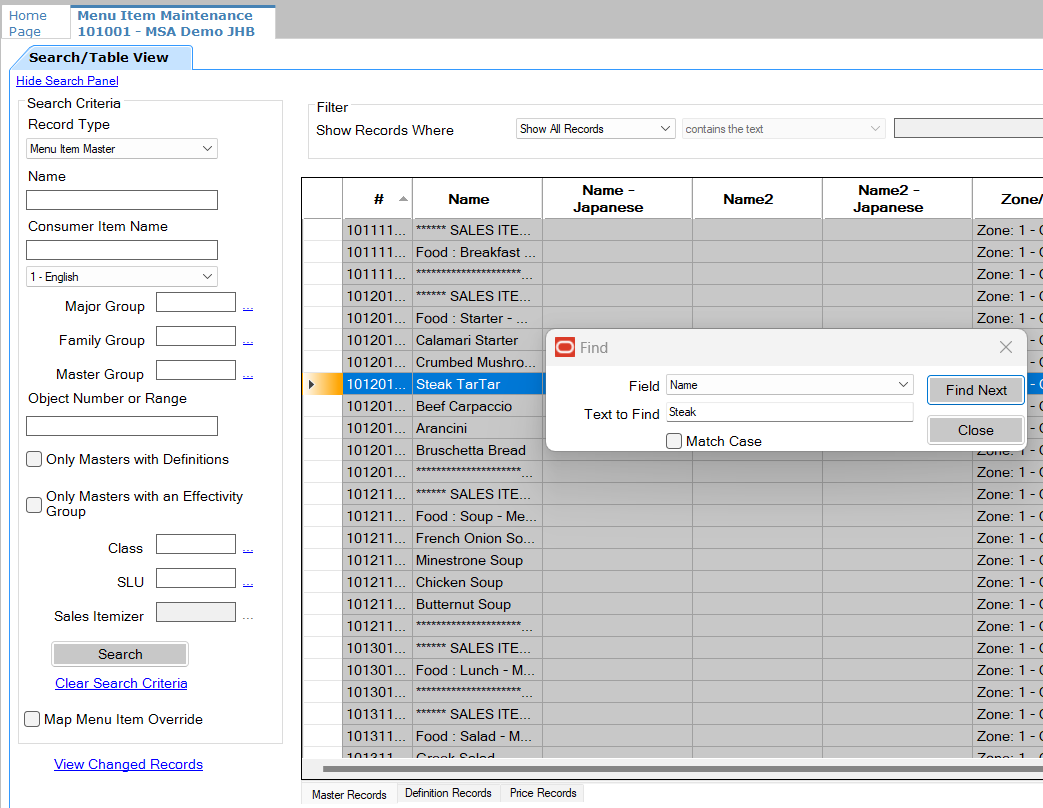
Ctrl + F → Search by menu item name
Ctrl + G → Search by menu item number, then click Go
4. Important Data Standards (Must Follow)
⚠️ These rules are critical for data integrity and reporting:
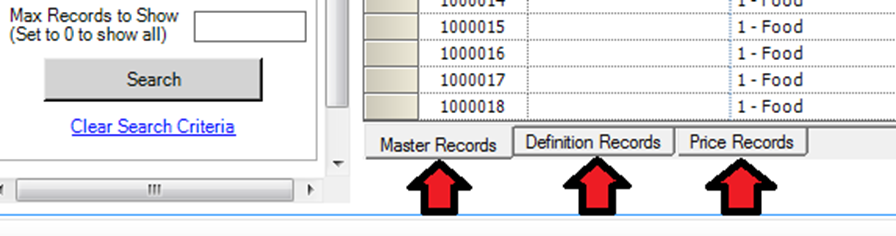
Always work from left → right in the screen flow
Follow existing database naming and formatting standards
Never rename or overwrite Master Records
This causes incorrect reporting in MyMicros
Always create a new menu item instead
Do not delete existing definition records
Always add items under the correct menu headings
Example: Beers must be added under Beers
5. Adding a New Menu Item Step-by-Step Process
In Menu Item Maintenance, select the menu group where the item belongs
Highlight an existing item with the same behaviour:
Same prompts (e.g. meat temperature, bread type)
Same printing and reporting logic
📌 This ensures the new item inherits the correct configuration.
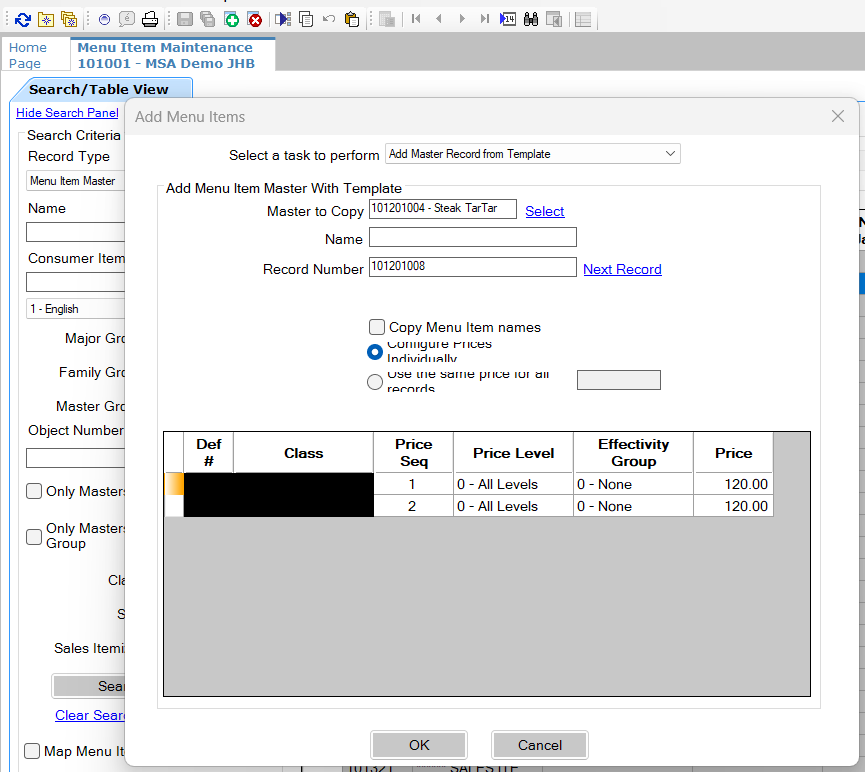
Click Insert Record (green plus icon)
Select Add Master Record from Template
Enter:
New Menu Item Name
Selling Price
Click OK to save or Cancel to discard
If prompted to add another item:
Select Yes to continue
Select Cancel to stop
Click Refresh to reload the screen
6. Verifying the New Menu Item Definition Record
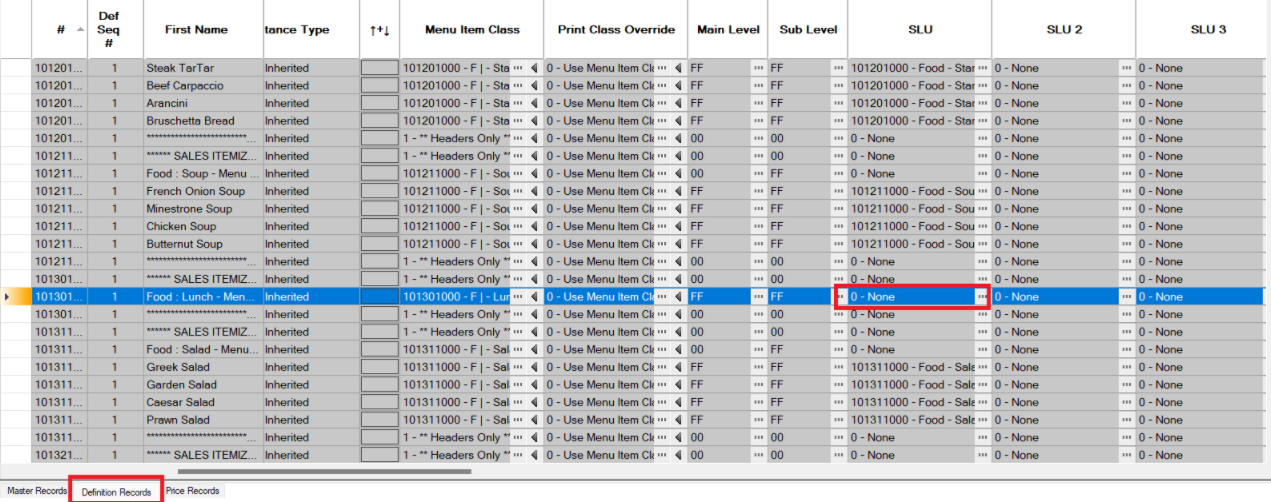
Go to the Definition Record tab
Confirm the new menu item was created correctly
Ensure all required fields are completed

⚠️ If required fields are missing, the item will not appear on POS
Price Record
Go to the Price tab
Confirm or enter the correct price
Click Save

7. Maintaining Existing Menu Items Best Practices
Do not delete existing menu item definitions
Existing records are already posted to MyMicros and used for reporting
If an item must no longer appear on POS:
Remove or change the SLU to 0 or None
This hides the item without breaking reporting
⚠️ Deleting records should only be done at your own risk
8. Editing Menu Item Prices Steps to Change Prices
Log in to EMC → Property Level
Open Configuration → Menu Item Maintenance
Click Search to load menu items
Use:
Ctrl + F for name search
Ctrl + G for number search
Price Update Rules
Ensure the item follows the same Master → Definition → Price structure
Move left → right through the record structure
Update the price as required
Click Save
9. Common Mistakes to Avoid
❌ Renaming Master Records ❌ Deleting Definition Records ❌ Adding items under incorrect headings ❌ Ignoring left-to-right workflow ❌ Breaking existing data standards