Enabling Log File Archiving and Verbosity for Simphony Servicehost
1. Introduction
This guide provides clear, step-by-step
instructions on how to enable Log File Archiving and configure Verbosity within
Simphony Servicehosts. These settings are essential for diagnosing persistent
issues such as workstation disconnects, missing checks in Reporting &
Analytics (R&A), iCare posting failures, or general communication
breakdowns between components.
Enabling logging and verbosity helps
technical teams collect detailed system information needed for troubleshooting
and root cause analysis while ensuring log files are managed correctly to avoid
storage overload.
2. Enabling Log File Archiving
Follow the steps below to activate
automatic log archiving on the Simphony EGateway component:
- Navigate to the folder:
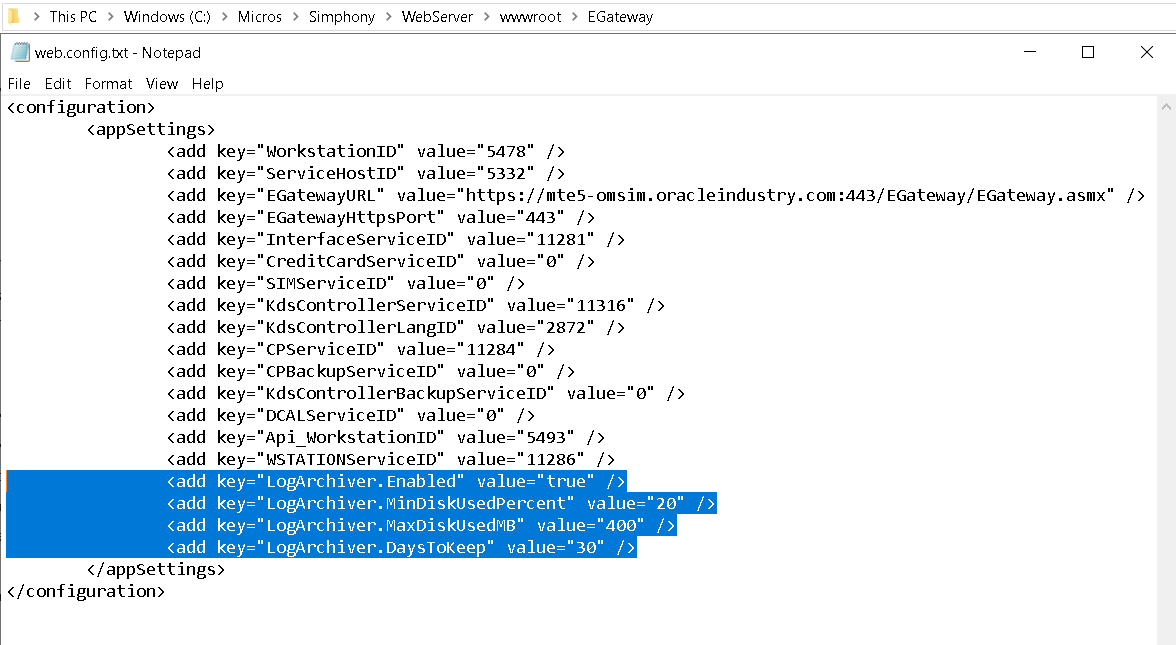
C:\MICROS\webserver\wwwroot\EGateway
- Open the file *Web.config* using a text
editor (e.g., Notepad or Notepad++).
- Add the following entry under the
<appSettings> section to enable log archiving:
<add key="LogArchiver.Enabled" value="true" />
- Optional: Add the lines below to
customize log retention and disk usage limits:
<add key="LogArchiver.MinDiskUsedPercent" value="20"
/>
<add key="LogArchiver.MaxDiskUsedMB" value="400" />
<add key="LogArchiver.DaysToKeep" value="30" />
- Save the file and restart the Servicehost
service if required.
- When configured, Simphony will
automatically manage log storage. Logs will only consume space until the drive
reaches 20% available capacity, will not exceed 400MB, and will purge logs
older than 30 days.
3. Retrieving Archived Logs
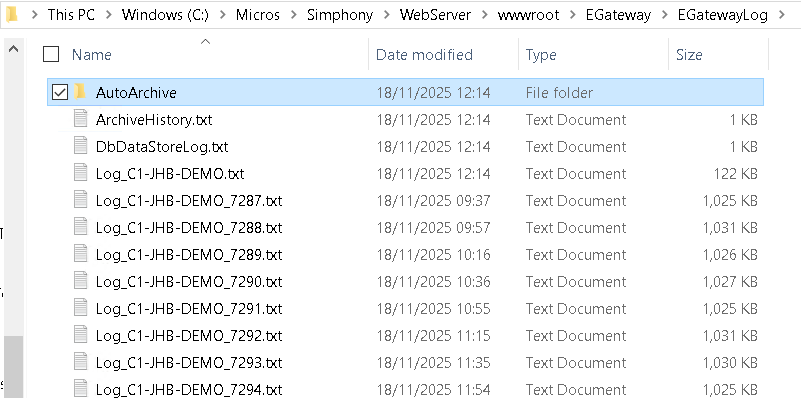
Archived logs are saved automatically in
the *Auto Archive* folder under the EGateway directory. Retrieve logs from this
folder whenever extended diagnostics are required.
C:\Micros\Simphony\WebServer\wwwroot\EGateway\EGatewayLog
4. Setting Log Verbosity
Verbosity allows the system to record additional details for specific APIs or components. This is especially useful when diagnosing issues related to API, OSB, or other interfaces.
Steps to configure verbosity:
- Browse to:
C:\MICROS\webserver\wwwroot\EGateway\Egatewaylog
- Open the file: *LogZone_LoadHandlers.txt*
- Locate the component or API you need to
monitor.
- Set the verbosity level. The default is
0.
-
Example: Set API to verbosity level 3:
-
API,3
- Save the file.
- Restart the Servicehost for the change to
take effect.
- Higher verbosity levels increase system
load and generate larger log files. Verbosity higher than 3 should only be used
temporarily—ideally for a few hours—and then reverted to 0.

5. Best Practices
- Always enable Log Archiving when
increasing Verbosity to prevent disk overuse.
- Avoid leaving Verbosity above level 0 for
extended periods.
- Always restart the Servicehost after
modifying logging configurations.
- Collect logs immediately after
reproducing the issue for the most accurate results.
This lesson is not ready to be taken.